Your Coffee Stats on E-Ink: The Beanstats TRMNL Plugin
TRMNL is a small e-ink display that sits on a desk or shelf and quietly shows whatever you point it at. Beanstats now has an official plugin for it, so the screen can show your coffee.
No app to open, no phone to unlock. Just a glance on the way past the grinder.
What’s on the Screen
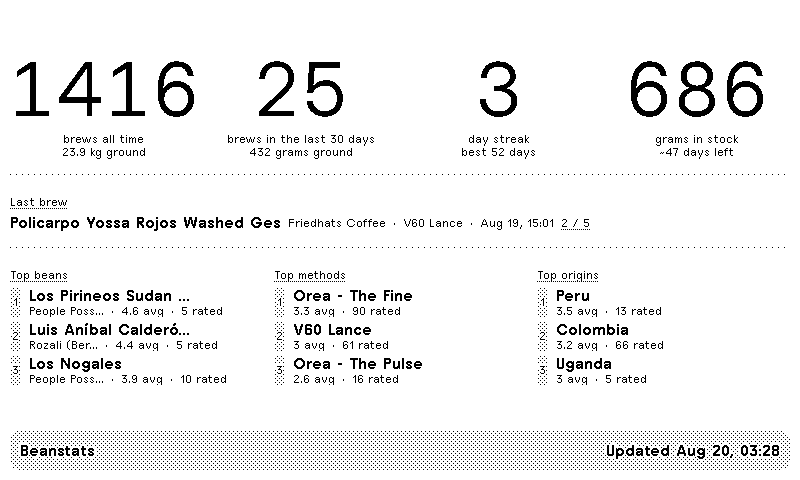
Four numbers sit at the top, and they are the same four in every size:
- Brews all time, the lifetime count
- Brews in the last 30 days, so you can see how the current month is going
- Current streak, your run of consecutive brewing days
- Beans in stock, the total weight of your active bags
Below that, depending on how much room the screen has, you get your last brew (bean, roaster, method, and rating) and your best rated beans, methods, origins, roasters, or processes.
Those rankings are sorted by average rating rather than by how often you brew something. It is a list of what you actually enjoyed, not a list of what happens to be closest to the grinder.
Four Sizes, One Look
TRMNL lets you split a screen into slots, or combine several plugins into a mashup. Beanstats fits all four layouts:
| Layout | What it shows |
|---|---|
| Full screen | Four numbers, last brew, and three rankings |
| Half (wide) | Four numbers and a one-line last brew |
| Half (tall) | Four numbers and your top beans |
| Quadrant | Four numbers |
Because the headline numbers never move, the plugin reads the same whether it has the whole screen or a corner of it.
Setting It Up
The plugin lives on TRMNL as a recipe, so there is no markup to copy or paste.
- Open the Beanstats plugin on TRMNL and install it
- Copy the Webhook URL the plugin shows you
- In Beanstats, go to Settings > Data & Storage > Webhooks and add an endpoint
- Paste the URL, leave authentication set to None (the URL itself is the secret)
- Enable the Stats Snapshot event, and turn the other events off
- Set Payload Format to TRMNL
- Save, then tap Send Test Webhook to fill the screen straight away
That last step matters: it sends a realistic sample so you can see the layout immediately, without waiting for your next brew.
Two Settings Worth Knowing
Units. Weights travel from the app in grams and are converted on the screen, so pick Metric or Imperial in the plugin settings. The thresholds match the app’s own, which means 840 grams of beans reads the same way on the display as it does on your phone.
Sections to show. Pick which blocks appear under the headline numbers: last brew, top beans, top methods, top origins, top roasters, top processes. This is set per plugin instance, so a full screen can show three rankings while the same plugin in a mashup quadrant shows none. Leave it empty and you get a sensible default.
Staying Current
The screen updates itself. Beanstats sends a fresh snapshot when you log a brew, and at most once every five minutes so a busy morning of back-to-back shots does not flood the device. In between updates, TRMNL keeps showing the last snapshot it received, so the screen is never blank.
Before your first brew, you will see a friendly waiting state rather than a wall of zeroes.
More Detail
The full webhook reference, including the standard format for Home Assistant and other services, is in the Webhooks documentation. The plugin itself is open source and lives on GitHub if you want to see how the screen is put together, or build your own variation.
Happy brewing!